Easy way to save and reuse sections on your Squarespace website
Use this handy feature to save page sections and reuse them elsewhere on your website.
One of my biggest Squarespace loves is that it’s user-friendly (for both me and my clients). Over the past few months, they have released many new features to make things even easier for us to update and maintain our websites, and the ability to save page sections was worthy of a standing ovation (in my opinion).
My top tip for creating a website with a consistent look and feel is to replicate design features across all pages. Start by designing the home page, and use this design as the base for all other pages. We don’t want every page to look the same, but replicating feature sections can help create consistency, and familiarity across your website as a whole.
Want to know the *super* quick and easy way to do this? Save your sections!
1 - Create your section
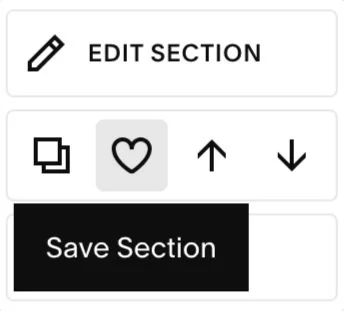
Whether you have created a new section, or want to reuse an existing one, the option to save will be available (excluding blog and portfolio pages). Hover over the ‘Edit Section’ icon on the top right-hand corner of the section and click on the heart (as shown in the image on the left). Don’t forget to check mobile styling before saving. This will avoid the need for having to restyle the section for mobile everytime it’s used.
2 - Duplicate your section
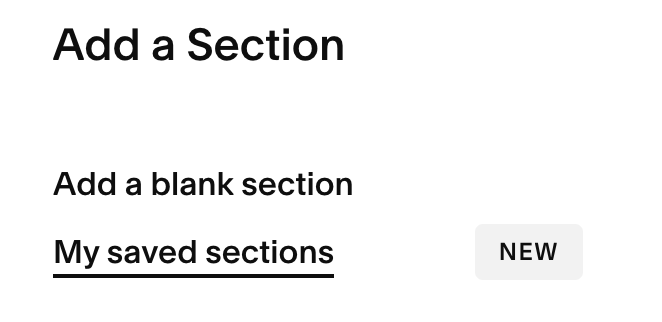
When you add a new section to a page you will see the ‘My saved sections’ option on the left hand menu panel. Here you will find the library of all sections you have saved. Just click on the one you would like to use and it will load on the page (including saved content).
How easy was that?!
You can now build new website pages, or update existing ones super quick, without having to recreate the design or layout each time!
Win win!!