Useful guide to speed up your web design by making a duplicate Squarespace page
Let me share a (not so) secret with you…Squarespace pages can be duplicated!
This means that you don’t have to build every page of your website from scratch, hurrah!
I’m a big believer in working smarter not harder, so when building your website my best tip is to perfect the design of one page (ideally the home page), and then duplicate it! This doesn’t mean all pages of your website will look the same - the individual sections can be moved around, removed and tweaked if needed, plus you’ll hopefully (?!) have different text and images!
The benefit of creating a duplicate Squarespace page is that the foundations are already in place, thus speeding up the build time of additional pages. So, the big question is how do we do this?
To start, open the pages menu bar on the left hand side of your website dashboard. Hover over the page you would like to duplicate, and click on the cog icon.
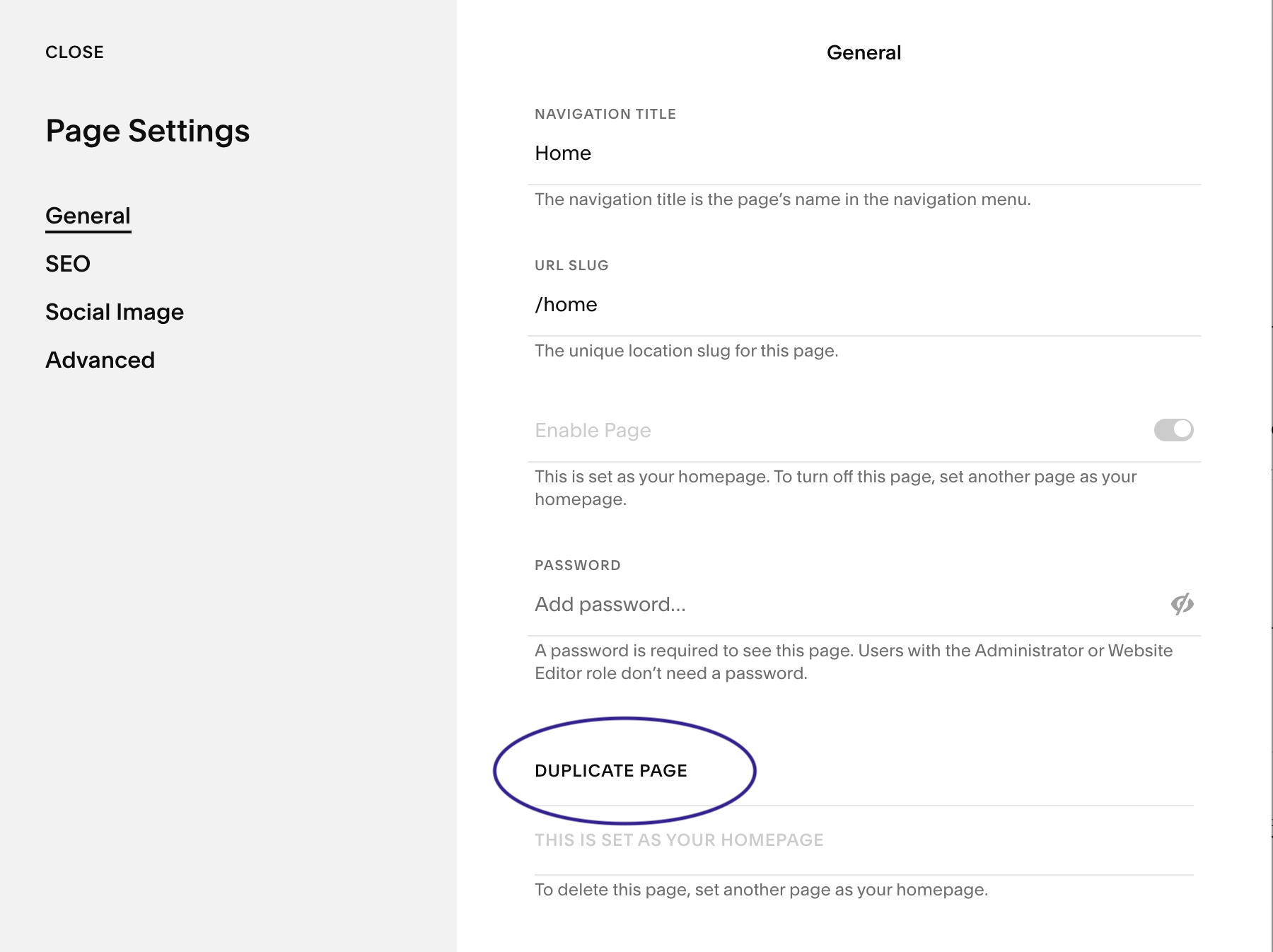
This will open the page settings. It should open on the general tab by default, but if not click on this and then scroll down. Here you will see the option to DUPLICATE PAGE - click on this, and voila!
When duplicating a page, remember you still need to update the navigation title, URL slug and SEO title and description.
What pages can’t I duplicate on Squarespace?
Unfortunately the duplicate option isn’t available on all page types, so the ones to watch out for are Portfolio, Blog and Store. These pages can’t be copied and would have to be built again, so it’s worth keeping in mind when designing your ‘main page’.